
Transcript Management
Published:
Having completed some interviews over Zoom, I found that it was generating a first pass at a transcript for me. These were largely reasonably accurate, and certainly close enough that I could identify the errors easily. The problem however, is that the transcripts are in the VTT format. While essentially a text file I didn’t want to have to manually go through and remove every time coded reference. Or indeed every time my full name was listed.
So after some podering, a bit of trial and error (with the help of Claude Code with the details of Python) I ended up with a command line tool that I can use to manage the initial reorganisation of these files. The usage is, as a result nice a straightforward. Providing the command and the file name in terminal like this, vtt_process "~/filePath/interview.vtt" results in the transformation script running.
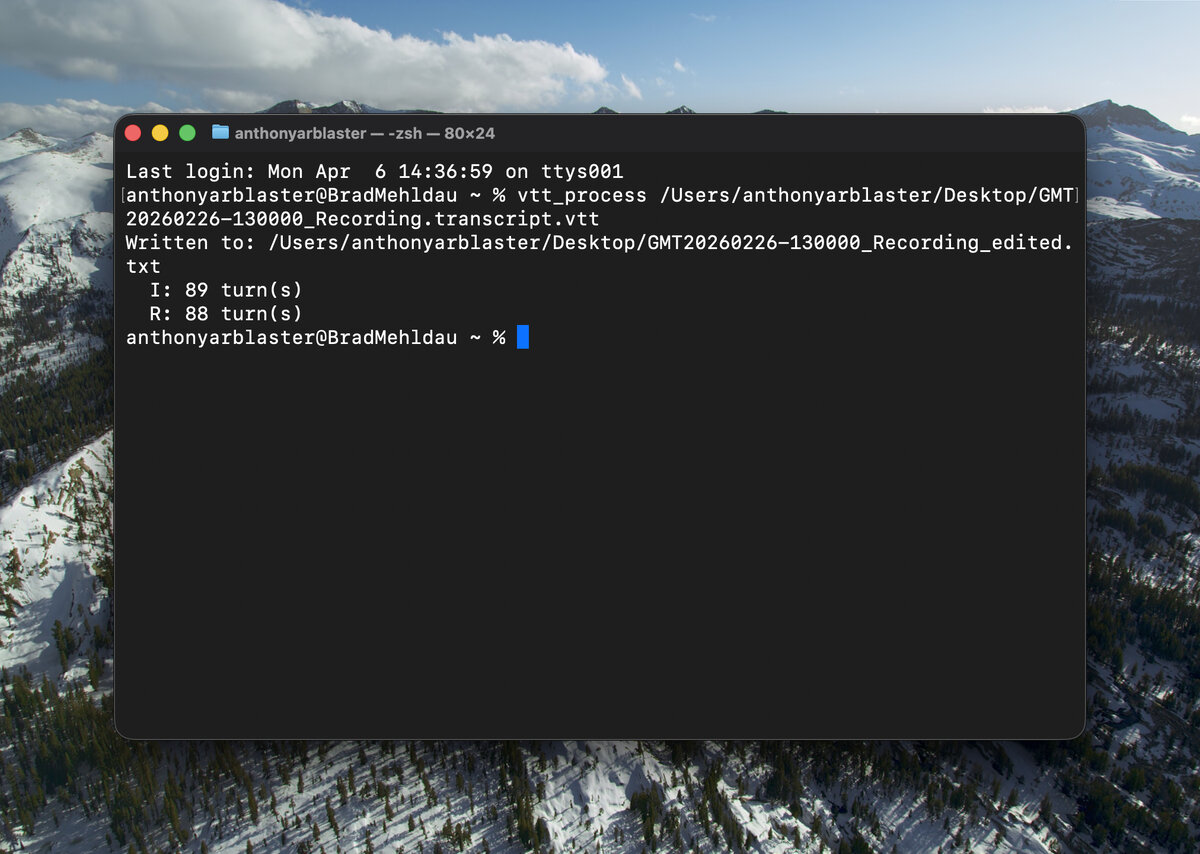
Then I get a new file called interview_edited.txt in the same directory. Ready to be copied and pasted into my word template. You can see in the image below, it corrects some common problems in these VTT files. Firstly, it does some basic spelling correction so that I don’t have to redo all the work correcting American English to British English spelling. Particularly for things like ‘colour’ which come up a lot. It also manages to join instances where one person is speaking into a single text block. The VTT files are heavily encoded to time ranges so this was the most significant replacement. I also wanted to remove names. My interviews aren’t anonymous but I wanted the transcripts to be consistent, using ‘I’ for interviewer and ‘R’ for respondent throughout.
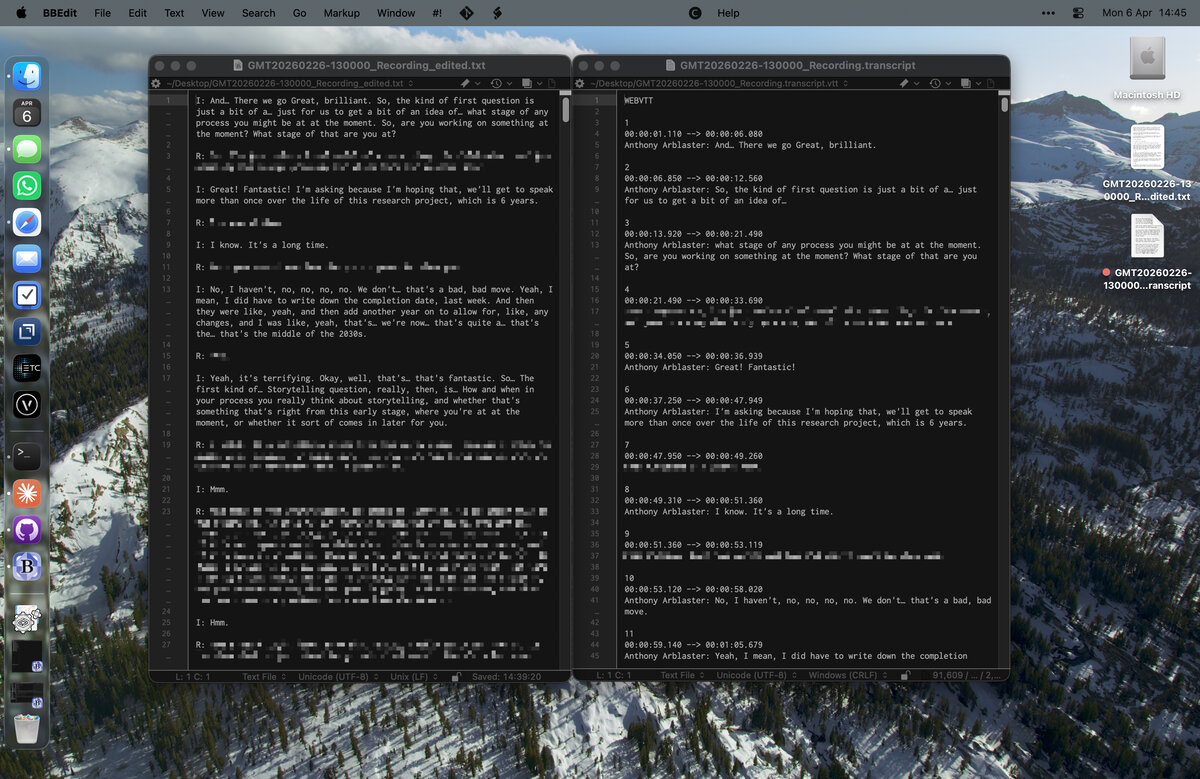
In my first interview I did this by doing a series of search functions on the text file in BBEdit. But this was slow and annoying. The first time I did this it probably took me an hour using BBEdit. The new scripted route, I managed to transform three transcripts in under five minutes. It made this first go at creating a transcript much easier. It really helped to make the content digestible so I could follow the logic of the conversation when editing.
The actual code for this is hosted as a Gist on GitHub. It’s two files really, a Python helper that does the real work, and a zsh wrapper that I call from the terminal. I have both in my collection of zsh files incorporated into my ~/.zshrc. The python code is quite long, mostly because of the spelling checks required, which are all hard coded. A admittedly inelegant solution, but it works which is all I really care about.
The core of the processing is done in this block, where each of the defined helpers are called. Crucially this is where the default name is set.
#!/usr/bin/env python3

def main():
	parser = argparse.ArgumentParser(
		description='Process a Zoom/Teams .vtt transcript for research use.'
	)
	parser.add_argument('input', help='Path to the .vtt file')
	parser.add_argument(
		'--self',
		dest='self_name',
		default='Rose Tyler', # Change the default name here.
		metavar='NAME',
		help='Speaker name to label as I (default: "Rose Tyler")',
	)
	args = parser.parse_args()

...
The challenge here was to make sure that the bits of text near the individual speaker blocks were managed properly. This took quite a bit of trial and error. As you can see above, the code allows you to specify the interviewer name when executed, but if none is provided, it will default to the coded default. Obviously in my copy the default isn’t Rose Tyler.
All the code is under MIT Licence so go nuts and use it if it’s looks useful.
The full python script is embedded below, where you can see the long spelling block alongside the key helpers. The python gist is here and the zsh wrapper is uploaded here.